A Beginner’s Guide to Deploying on VPS with Kamal 2
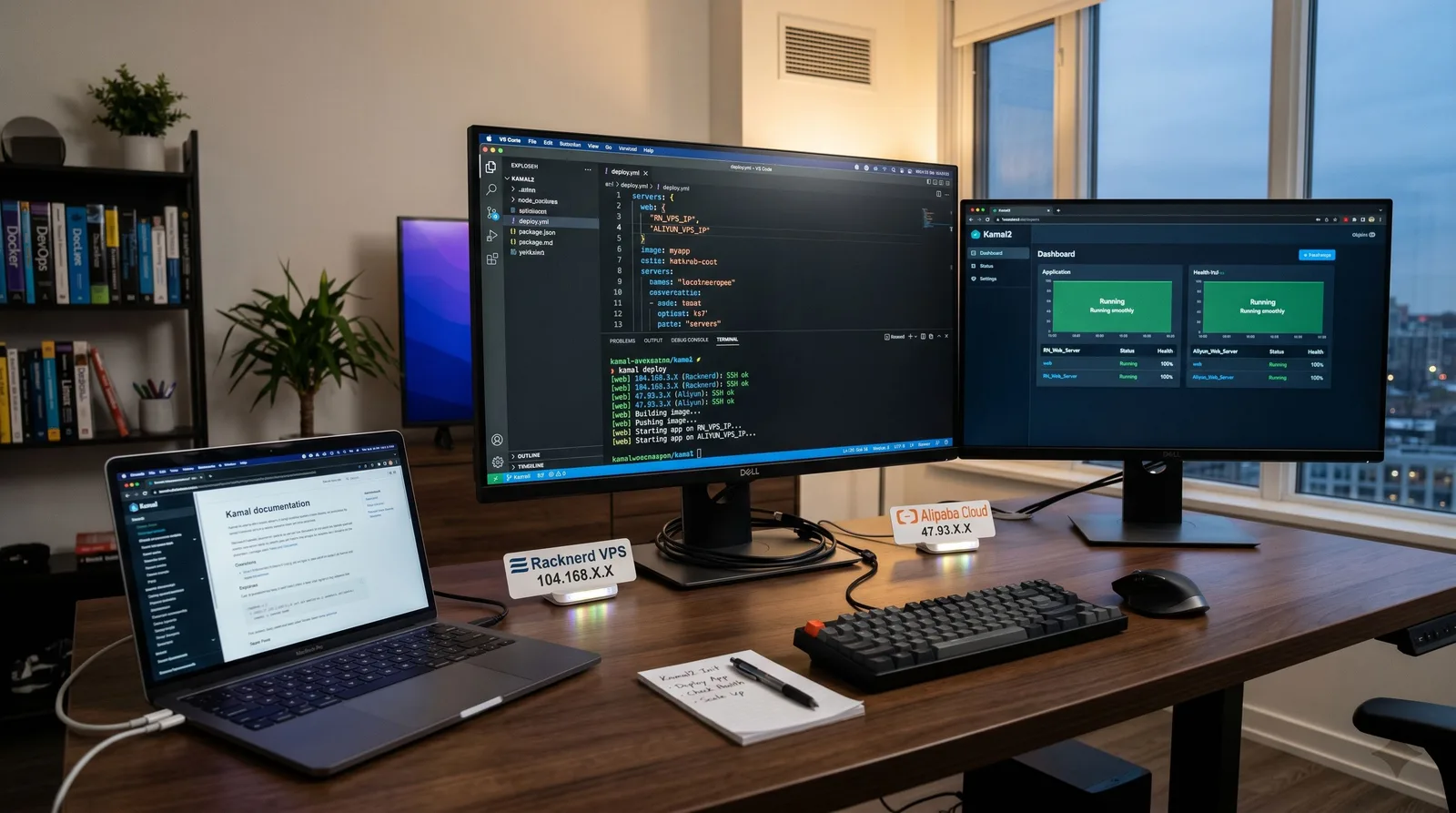
Right now, the main full‑stack frameworks I use are Next.js 16 and Rails 8. Through Rails, I came across the officially recommended deployment tool: Kamal. I usually use it to deploy projects on RN and Alibaba Cloud servers. It feels smooth and simple to work with, so I’d like to introduce Kamal2’s core concepts and basic usage to you as well.
This article won’t start with anything too complex. I mainly want to clarify the core of Kamal2 first: what it actually is, what it can do for us, how to get started with the basics, and which commands you’ll use most often. At the end, I’ll walk through a Next.js example so you can see how these ideas map to a concrete project.
What is Kamal2?
In one sentence, Kamal2 is a tool that deploys applications using SSH + Docker. It doesn’t provide a full platform like Heroku, and it’s not a heavyweight orchestration system like Kubernetes. Instead, it’s more like a way to turn “deploying a bunch of Docker containers” into a set of repeatable commands and configuration.
The core idea behind Kamal is actually very straightforward:
You have a standard
Dockerfilelocally.You describe deployment targets and image information in
config/deploy.yml.Kamal connects to your servers over SSH and sets up Docker there.
It builds the image locally and pushes it to a registry, then lets the server pull and run it.
It uses
kamal-proxyto listen on ports 80 and 443 and switches traffic over after the new container passes its health checks.
This is also what I like about Kamal: it doesn’t introduce too much extra abstraction. You more or less know what it’s doing, which makes debugging a lot easier when something goes wrong.
When does Kamal2 make sense?
In my view, Kamal is especially suitable in these situations:
You’re already using Docker to package your apps.
You have one or more Linux servers of your own.
You want the deployment flow to stay simple and don’t want to maintain a complex platform.
You want Rails, Next.js, and even other web services to share the same deployment approach.
In other words, Kamal doesn’t “replace Docker” for you. It helps make your Docker deployments smoother.
A few core concepts to understand first
Before we dive in, I’d suggest getting familiar with these key concepts in Kamal.
config/deploy.yml
This is Kamal’s main configuration file, and all deployment configuration is read from here. You can think of it as the “deployment spec” for this release: service name, image name, server list, image registry, environment variables, builder, proxy, and so on all live here.
.kamal/secrets
This is the default location for the secrets file. Kamal reads sensitive variables from here. For example, your image registry password or Rails’s RAILS_MASTER_KEY usually should not be hard‑coded in deploy.yml, but injected via .kamal/secrets instead.
kamal setup
This is the single most important command for your first deployment. The docs are very clear: it connects to your server, installs Docker if needed, logs into the image registry, builds the image, pushes the image, pulls it on the server, starts kamal-proxy, starts the new container, and then switches traffic only after GET /up returns 200 OK.
kamal deploy
This is the command you’ll use most frequently after the first release. Once setup has run successfully, later deployments are typically done via kamal deploy.
Installing Kamal2
If you already have Ruby installed locally, the most straightforward way to install Kamal is:
gem install kamalThis is the official, standard installation method. If you don’t have Ruby, you can also run Kamal in a Dockerized form, but the docs explicitly mention some limitations with that approach. For getting started, I recommend using the gem directly.
After installation, you can check the version:
kamal versionInitializing a project
Once you’re in your project directory, run:
kamal initThis command sets up the basic files Kamal needs. The most important ones are config/deploy.yml and .kamal/secrets.
If your project already has a Dockerfile, you’ve basically got the main prerequisite in place. Kamal’s deployment flow is built around using a standard Dockerfile in the project root to build images.
Minimal viable configuration
For beginners, I recommend starting with a very small config/deploy.yml. The docs show a minimal example that looks roughly like this:
service: myapp
image: your-registry-user/myapp

servers:
  - 203.0.113.10

registry:
  username: your-registry-user
  password:
    - KAMAL_REGISTRY_PASSWORD

builder:
  arch: amd64

env:
  secret:
    - AUTH_SECRET
In this config, these fields are the ones worth understanding first:
service: required, used as the container name prefix.image: the image name that will be pushed to your registry.servers: the list of target machines to deploy to.registry: the image registry configuration.env.secret: environment variables whose values are read from the secrets file.builder.arch: the build architecture; the docs’ example usesamd64directly.
At this stage, don’t stress about making the configuration “complete”. What matters is getting the basic pipeline working end‑to‑end.
Configuring secrets
Next, you need to prepare .kamal/secrets. For example:
KAMAL_REGISTRY_PASSWORD=$KAMAL_REGISTRY_PASSWORD
AUTH_SECRET=your-auth-secret
If it’s a Rails project, the docs show reading RAILS_MASTER_KEY from config/master.key. That’s one reason Rails and Kamal fit together so naturally: a fresh Rails app is already quite easy to drop into this deployment model.
What happens on the first deployment?
Once both the configuration and secrets are ready, you can run:
kamal setupThis command does quite a lot, but you can think of it as “a complete first-time deployment”. According to the official docs, it at least does the following:
Connects to the server via SSH.
Installs Docker on the server if it’s missing.
Logs into the image registry locally and remotely.
Builds the image using the Dockerfile in the project root.
Pushes the image to the registry.
Tells the server to pull the image.
Ensures
kamal-proxyis running on ports 80 and 443.Starts the new container.
Waits for
GET /upto return200 OK.Switches traffic to the new container.
Stops the old container and cleans up unused images and stopped containers.
There’s a very important detail here: the default health check is GET /up. So your application should expose a lightweight health check endpoint like this. Otherwise, the new container may be running, but Kamal still won’t switch traffic over.
Later deployments are much simpler
After setup succeeds once, subsequent updates usually just require:
kamal deployThe docs explicitly call this the command for subsequent deployments. You can think of it as your “normal release entry point”: rebuild the image, push it, pull it, start the new container, run the health checks, switch traffic, and stop the old container.
In terms of day‑to‑day experience, Kamal feels nicest in exactly this way: you invest a bit more effort for the very first deployment, and things become much smoother afterward.
Common operations
At the beginner stage, I find these commands the most useful:
Initialize
kamal initGenerates the base deployment files.
First deployment
kamal setupBrings the server, Docker, image, proxy, and app online together for the first time.
Subsequent releases
kamal deployThe command you’ll probably run the most.
Multi‑environment deployment
If you later split your environments into staging and production, Kamal lets you specify a destination with -d, for example:
kamal deploy -d stagingThe docs explain that in this case, Kamal will merge config/deploy.staging.yml with the base config.
This feature is quite handy, but if you’re just getting started, it’s enough to know it exists—you don’t have to adopt it right away.
Why Kamal and Rails fit well together
New Rails 8 projects typically ship with a Dockerfile out of the box, and Kamal’s deployment flow is built directly around that Dockerfile. On top of that, the Rails ecosystem is already very comfortable with Ruby gems and CLI tooling, so discovering Kamal via Rails feels almost natural.
For me personally, seeing this workflow in a Rails project is what made me start treating it as a serious, long-term deployment option.
A basic Next.js example
To close things out, here’s a more day‑to‑day example for me: if I’m deploying a Next.js project with Kamal, I usually first make it a standard Dockerized app, then hand it over to Kamal for deployment.
Step 1: Make Next.js output standalone
The Next.js docs explain that when you enable output: 'standalone', the build produces a .next/standalone directory containing the minimal files needed to run the app and a server.js. This is great for Docker deployments because you don’t need to bundle your entire dev environment into the image.
In next.config.js:
/** @type {import('next').NextConfig} */
const nextConfig = {
  output: 'standalone',
}

module.exports = nextConfig
One thing to note from the Next.js docs is that output: 'standalone' is meant to be run using the generated server.js, rather than continuing to use next start.
Step 2: Prepare the Dockerfile
A simple Next.js Dockerfile might look like this:
FROM node:22-alpine AS deps
WORKDIR /app
COPY package.json package-lock.json ./
RUN npm ci

FROM node:22-alpine AS builder
WORKDIR /app
COPY --from=deps /app/node_modules ./node_modules
COPY . .
RUN npm run build

FROM node:22-alpine AS runner
WORKDIR /app
ENV NODE_ENV=production
COPY --from=builder /app/.next/standalone ./
COPY --from=builder /app/public ./public
COPY --from=builder /app/.next/static ./.next/static
EXPOSE 3000
CMD ["node", "server.js"]
The key isn’t Docker magic here, but the idea: first turn Next.js into a standard, runnable container, then let Kamal handle deployment.
Step 3: Write the Kamal config
For example:
service: my-next-app
image: your-registry-user/my-next-app

servers:
  - 203.0.113.10

registry:
  username: your-registry-user
  password:
    - KAMAL_REGISTRY_PASSWORD

builder:
  arch: amd64

env:
  clear:
    PORT: 3000
    NODE_ENV: production
The logic behind this config is straightforward:
Kamal knows what the service is called.
Kamal knows which image name to build and push.
Kamal knows which server to deploy to.
Once the container starts, the app listens on port 3000, and the proxy exposes it to the outside world.
Step 4: Add a health check endpoint
Because Kamal checks GET /up by default, I’ll add a simple route in Next.js, for example under the App Router:
export async function GET() {
  return Response.json({ ok: true })
}
Place this under something like app/up/route.ts, so /up returns a simple success response. The lighter this endpoint is, the better—its only job is to tell Kamal “this container is ready to receive traffic”.
Step 5: Deploy
Finally, we just go back to Kamal’s standard flow:
kamal setupFor subsequent updates:
kamal deployIf this flow runs smoothly for a Next.js project, you’ll notice something: Kamal doesn’t actually care whether you’re using Rails or not. What it cares about is whether you can provide a standard Docker image and a web service whose health it can check.
That’s it for now
If, like me, you came to Kamal through Rails 8 and gradually moved this approach over to Next.js 16, Kamal2’s role is pretty easy to understand: it’s not a platform, it’s a tool that makes self‑hosted Docker deployments more orderly.
For getting started, this is enough:
Install Kamal.
Initialize the config files.
Understand
deploy.ymland.kamal/secrets.Use
kamal setupfor the first deployment.Use
kamal deployfor subsequent releases.Know that the default health check relies on
GET /up.
Once these pieces are running smoothly, moving on to multi‑environment setups, accessories, hooks, and more advanced proxy configuration will feel much more natural.
Follow on Google
Add HeyBinyang as a preferred source on Google
If you'd like to keep finding my updates through Google, you can mark this site as a preferred source and make it easier to spot in relevant reading flows.